
Start Your Exam
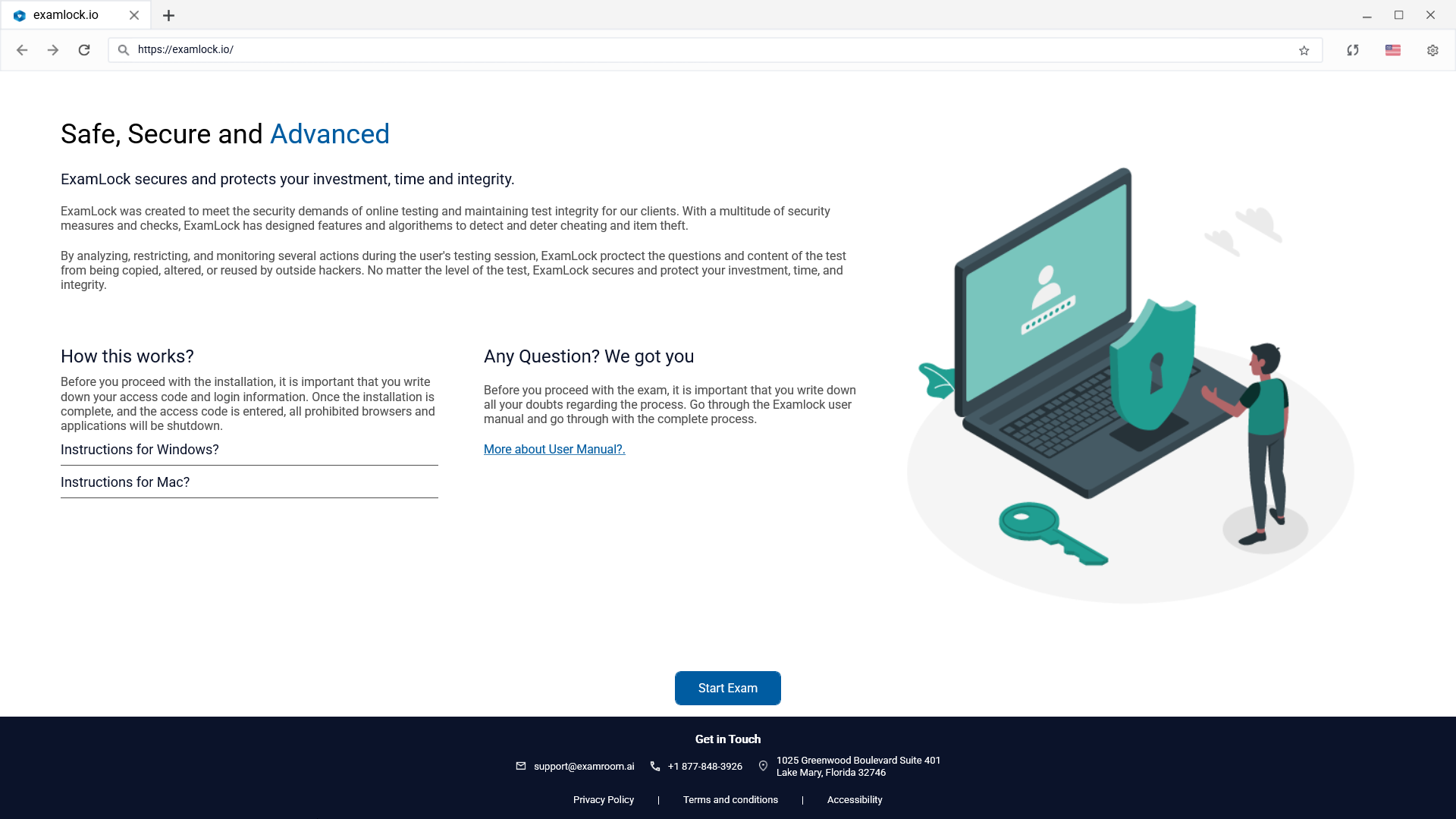
- Open ExamLock Browser.
- On the ExamLock welcome page, review the displayed information and select Start Exam.
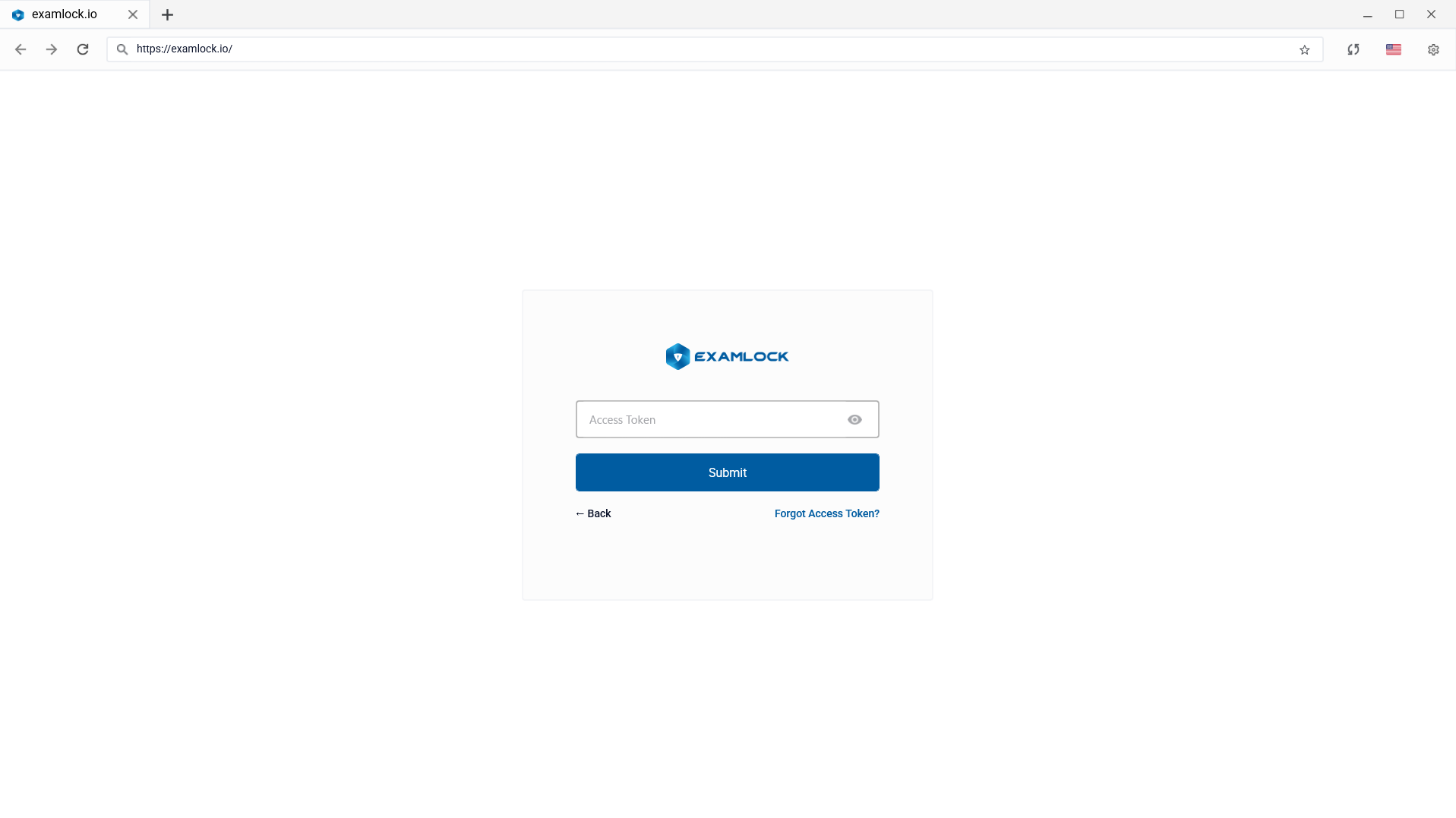
- Enter the Access Token provided for your exam.
- Select Submit.
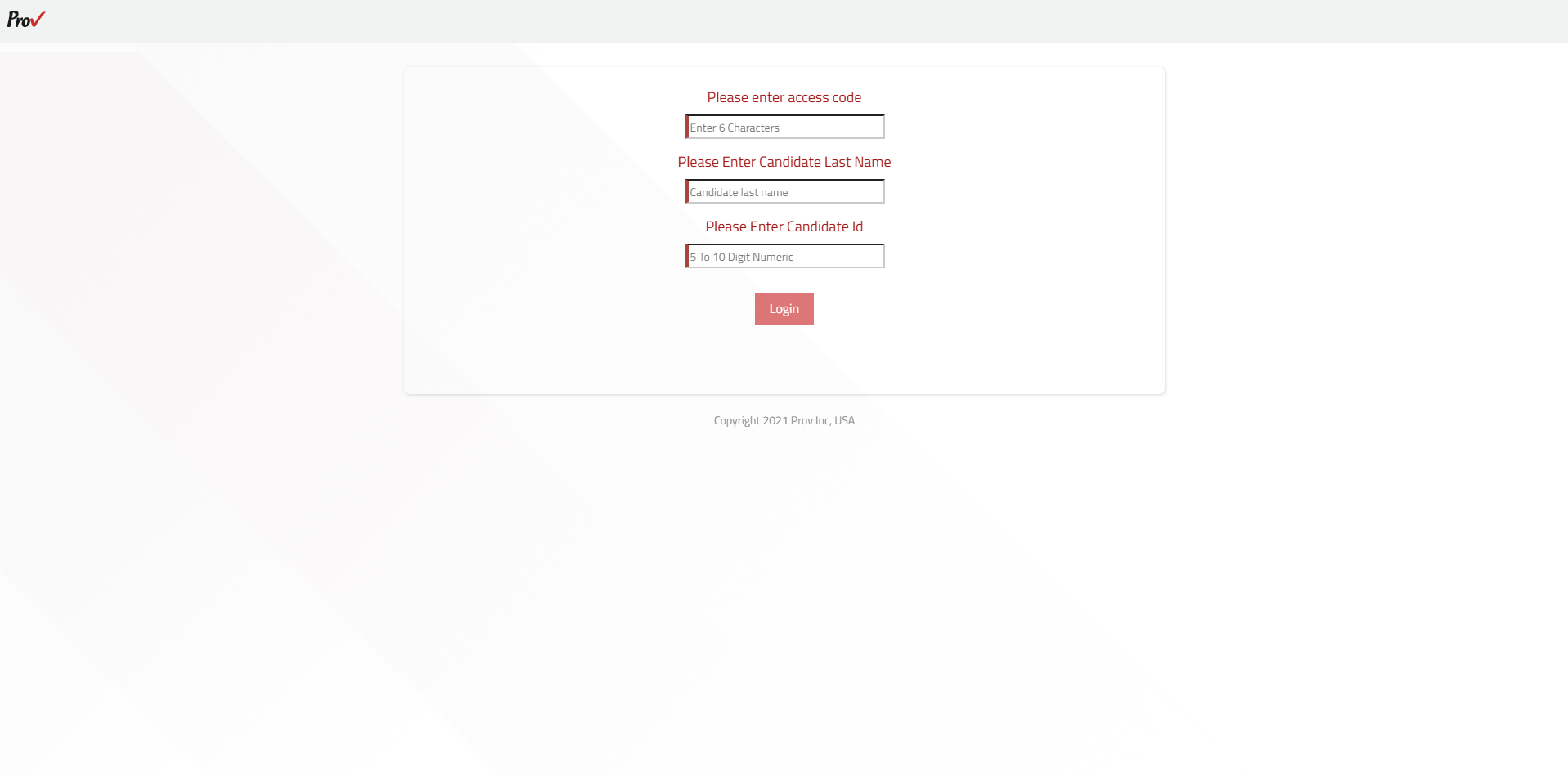
- On the login page, enter the credentials provided for your exam.
- Enter the access code. The exam access code is a 6-character identifier.
Log in to your Exam
- Enter your Last Name (candidate Last Name).
- Enter your Candidate ID.
- Select Login.
Acknowledgment
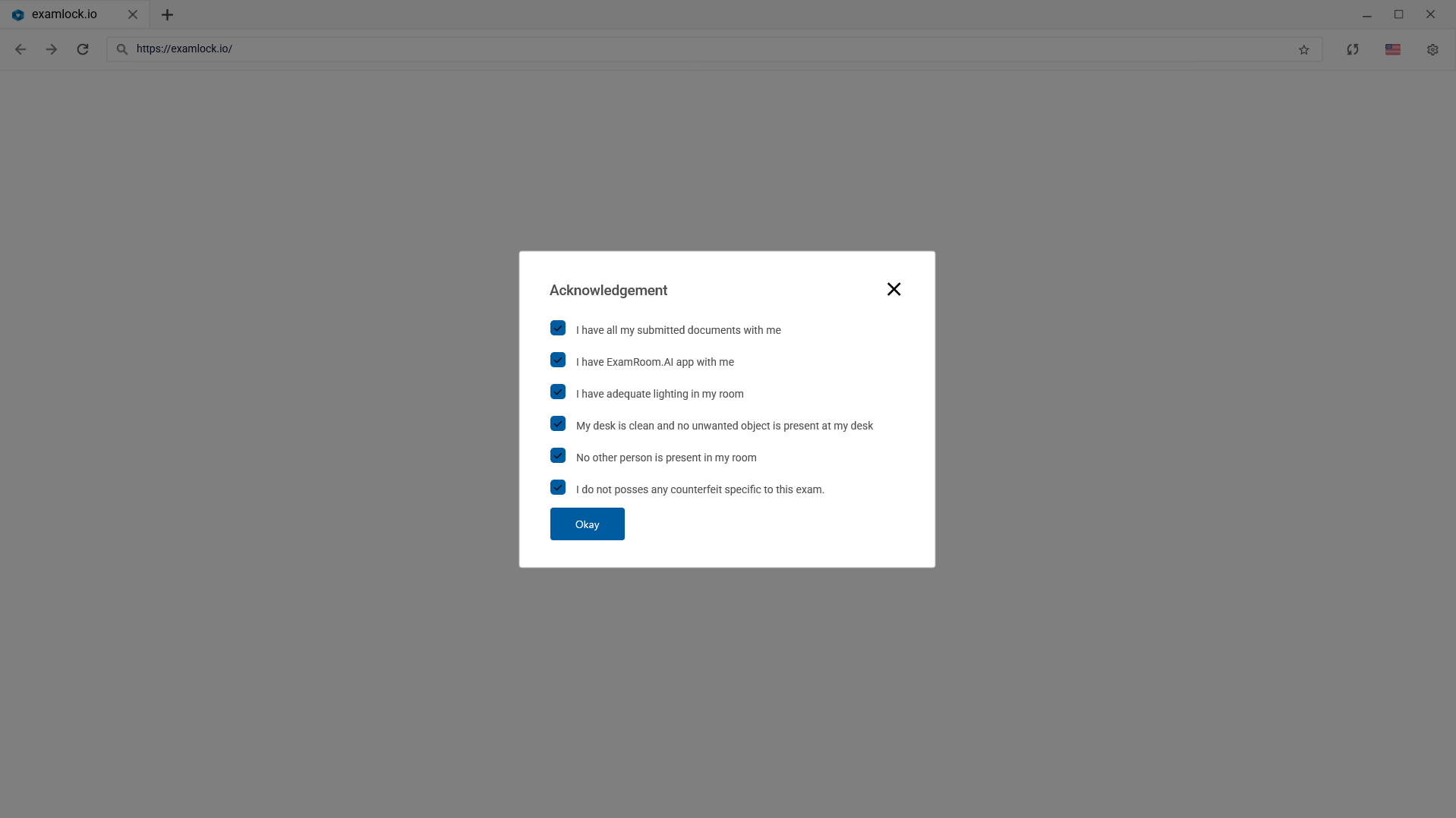
- An acknowledgment screen may require you to confirm that your testing environment and required materials meet the conditions for the exam.
- Review each acknowledgment statement.
- Select the check boxes and select Okay to continue.
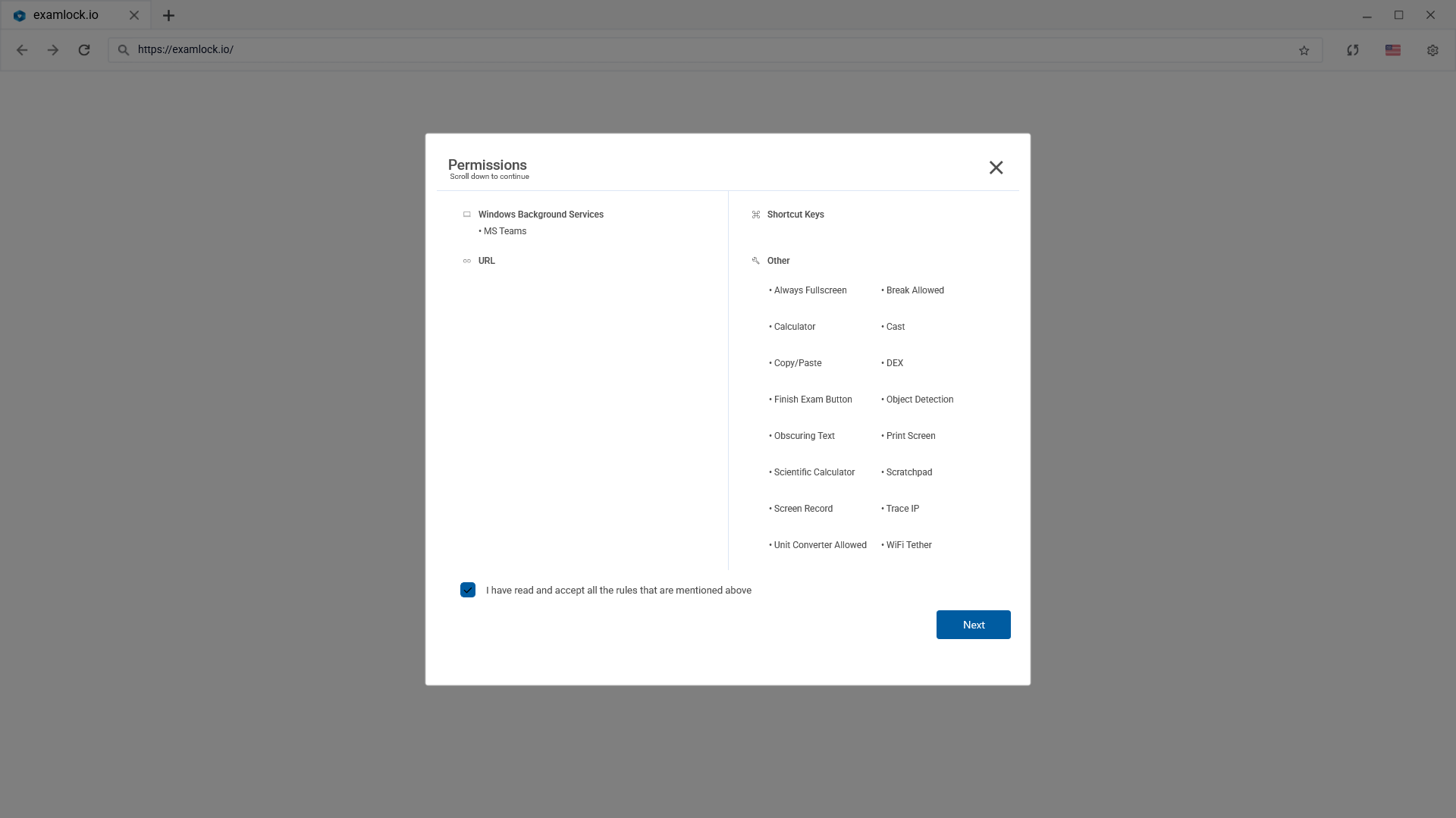
Permissions
- The Permissions screen displays the permissions and exam controls that may apply during the session. Review the listed items before continuing.
- Review the permissions and controls displayed on the pop-up window. Use the scroller to scroll through the list.
- Select the acknowledgment checkbox confirming that you have read and accepted the rules.
- Select Next to proceed.
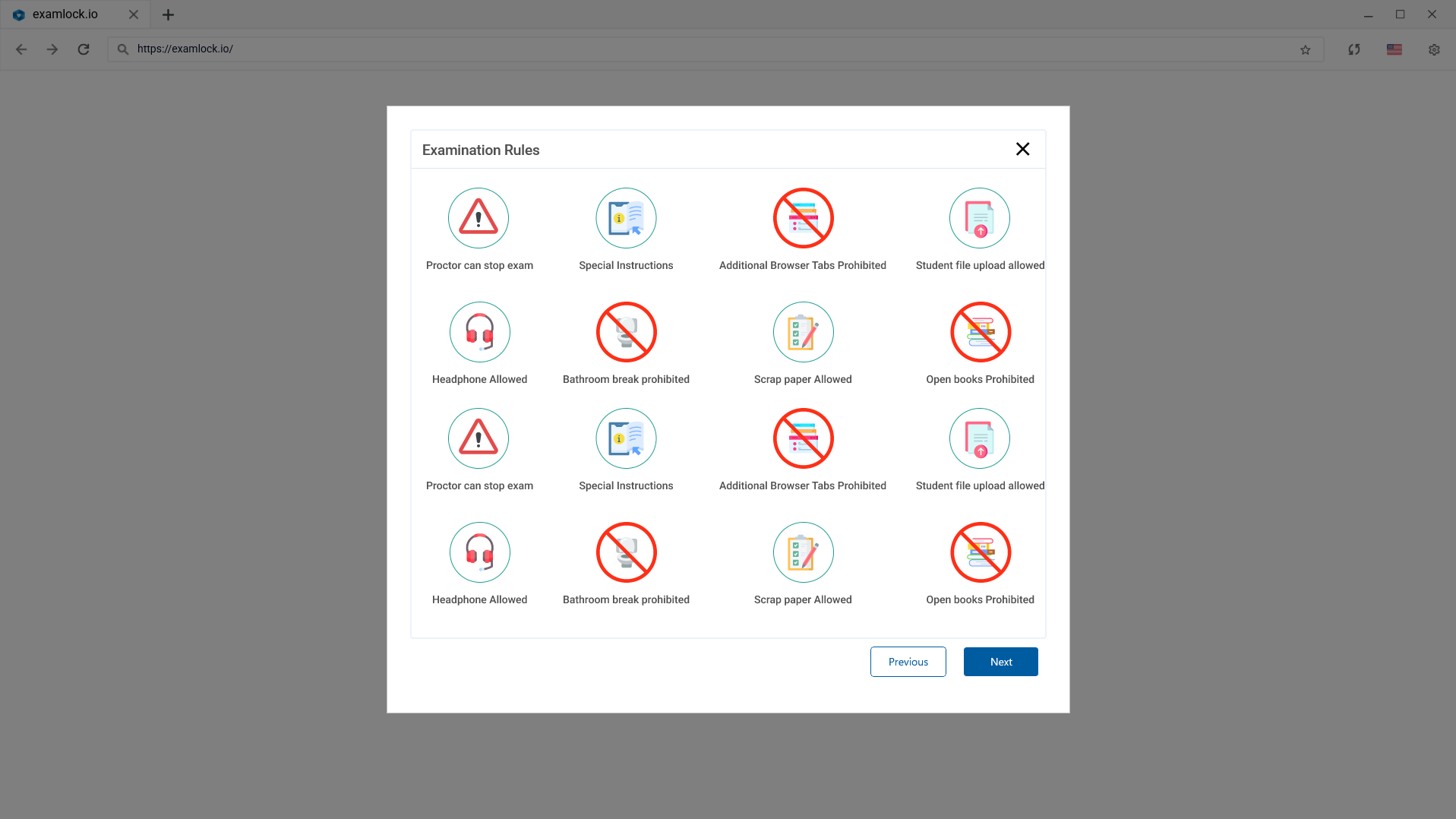
Examination Rules
Review the examination rules before beginning the exam. The rules shown may vary by exam.
- Follow the instructions displayed for the exam.
- Review any special instructions provided for the examination.
- Select Next after reviewing the rules.
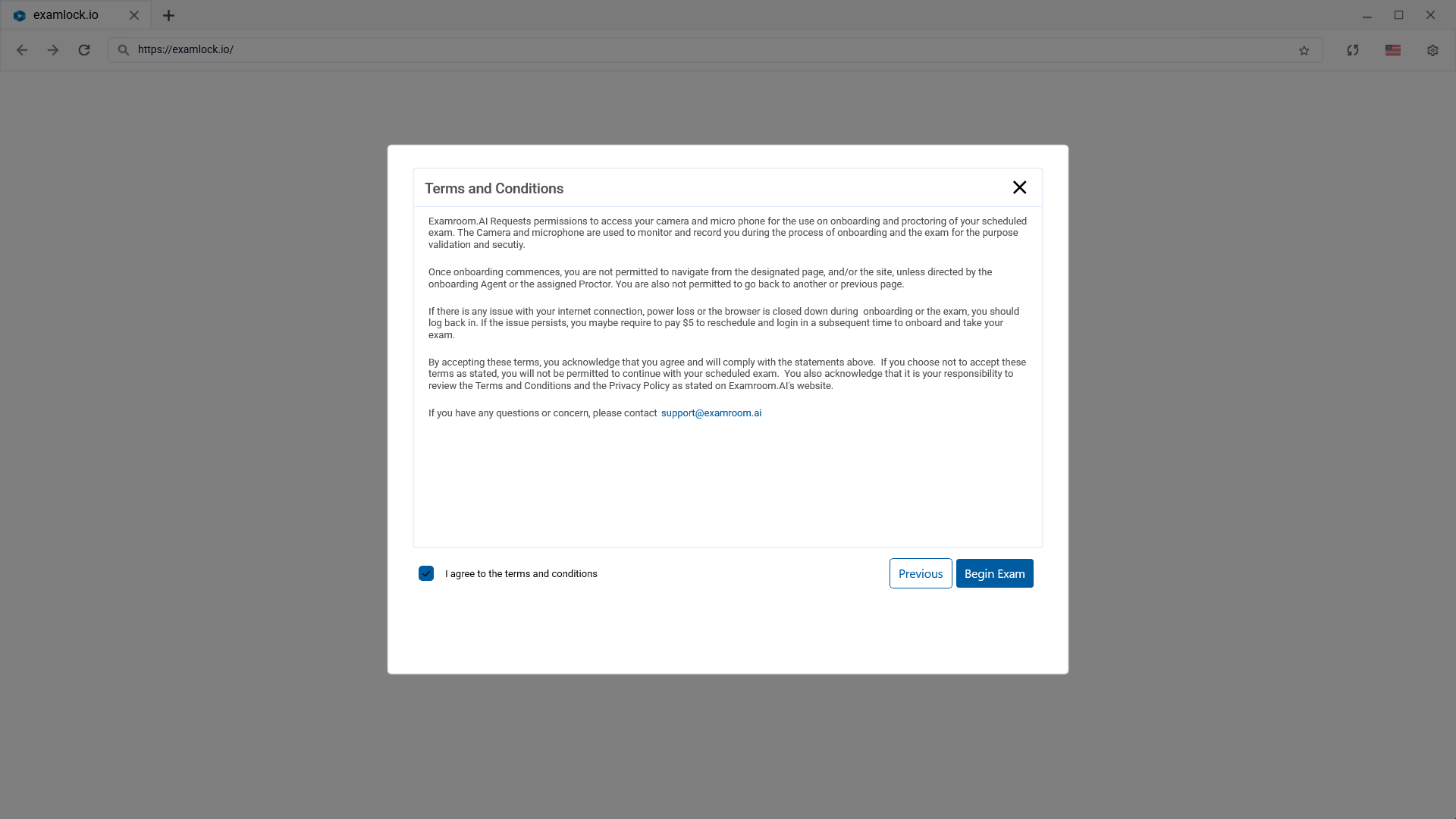
Terms and Conditions
- Review the terms and conditions that apply to the examination. These may include requirements relating to camera and microphone access, exam navigation, and what to do if an interruption occurs.
- Read the Terms and Conditions.
- Select the checkbox confirming your agreement.
- Select Begin Exam to continue.
Exam Mode Activation
- Before the exam begins, ExamLock may display an Exam Mode Activation screen. This screen shows which applications will close and which will remain open.
- Review the applications listed that will be closed and those that will remain open.
- You may save any unsaved work before continuing.
- Select Continue to activate Exam Mode.
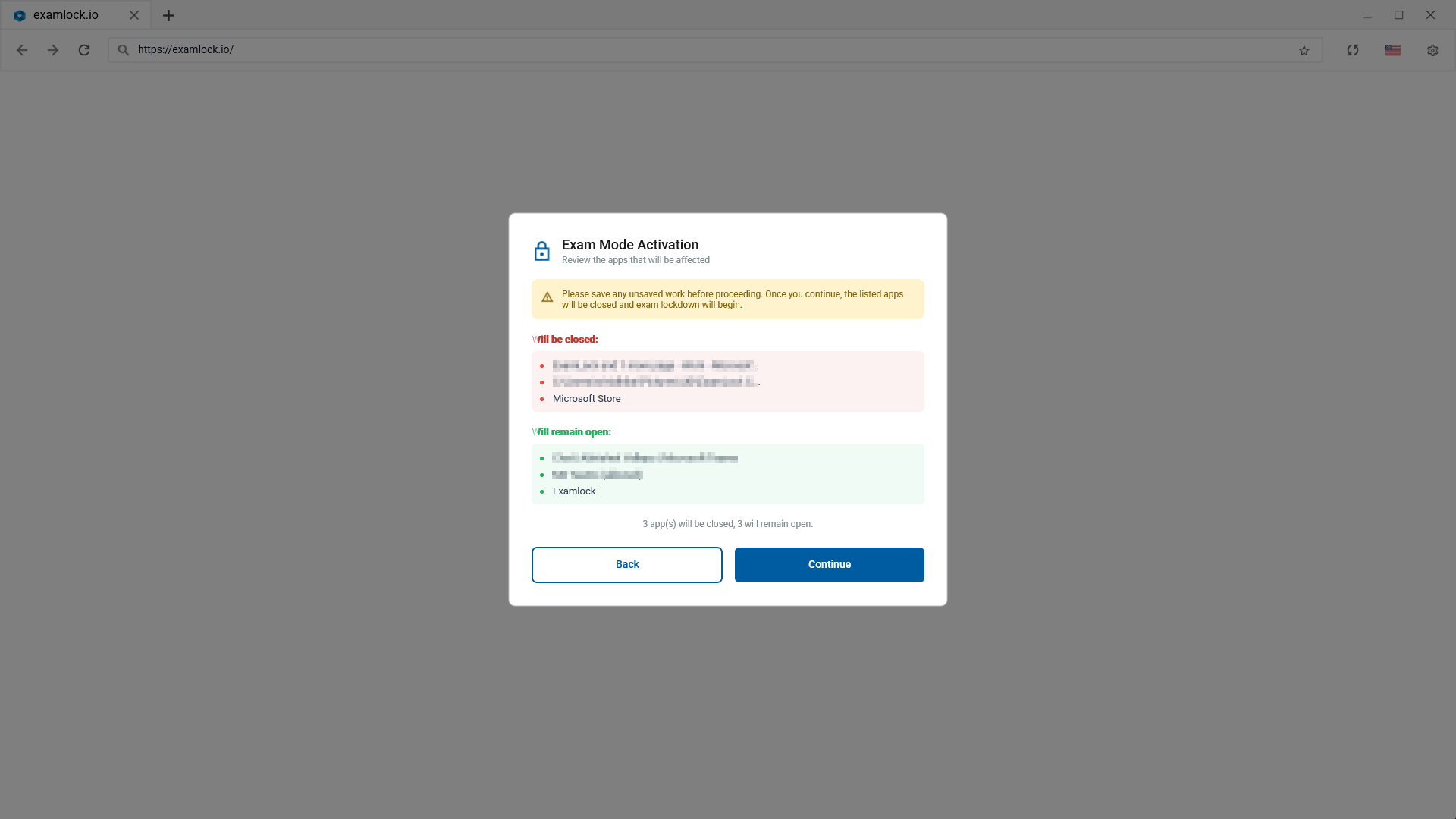
Note: When you select 'Continue' to activate Exam Mode, the exam will start, the test console screen will appear with the first question, and your exam timer will begin.