
Test Screen and Tools
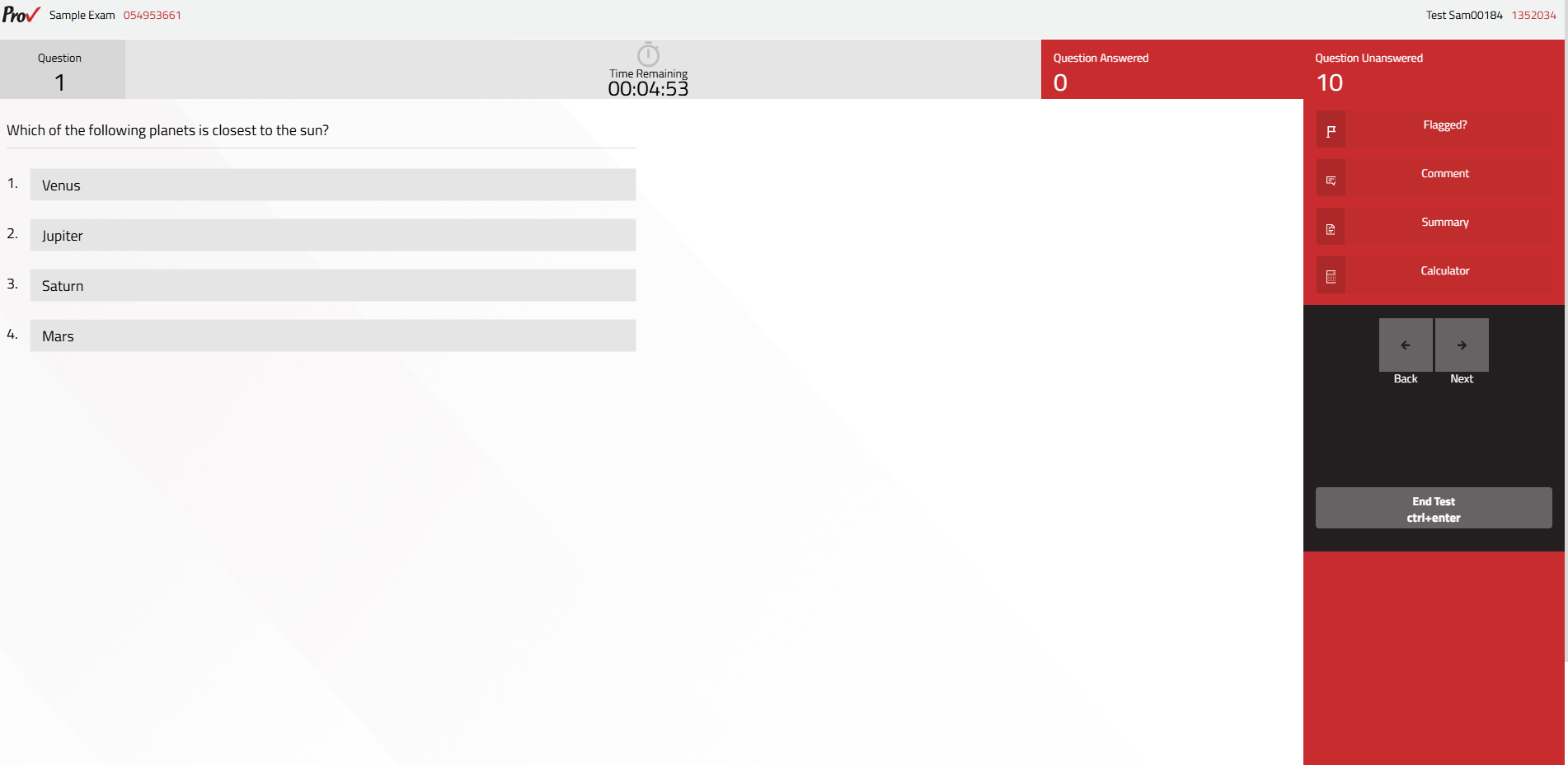
After you complete the pre-exam steps, the exam screen appears. The test console screen provides the question, timer, answer status, navigation controls, and available exam tools.
- Question number: Identifies the current question.
- Time Remaining: Displays the remaining exam time.
- Question Answered: Shows the number of questions that have been answered.
- Question Unanswered: Shows the number of questions that remain unanswered.
- Flagged: Marks a question for later review.
- Comment: Allows the candidate to report an issue with the question.
- Summary: Displays an overview of question status.
- Calculator: Opens the available on-screen calculator.
- Back/Next: Navigates between questions.
- End Test: Starts the process of ending the exam.
Answering Questions
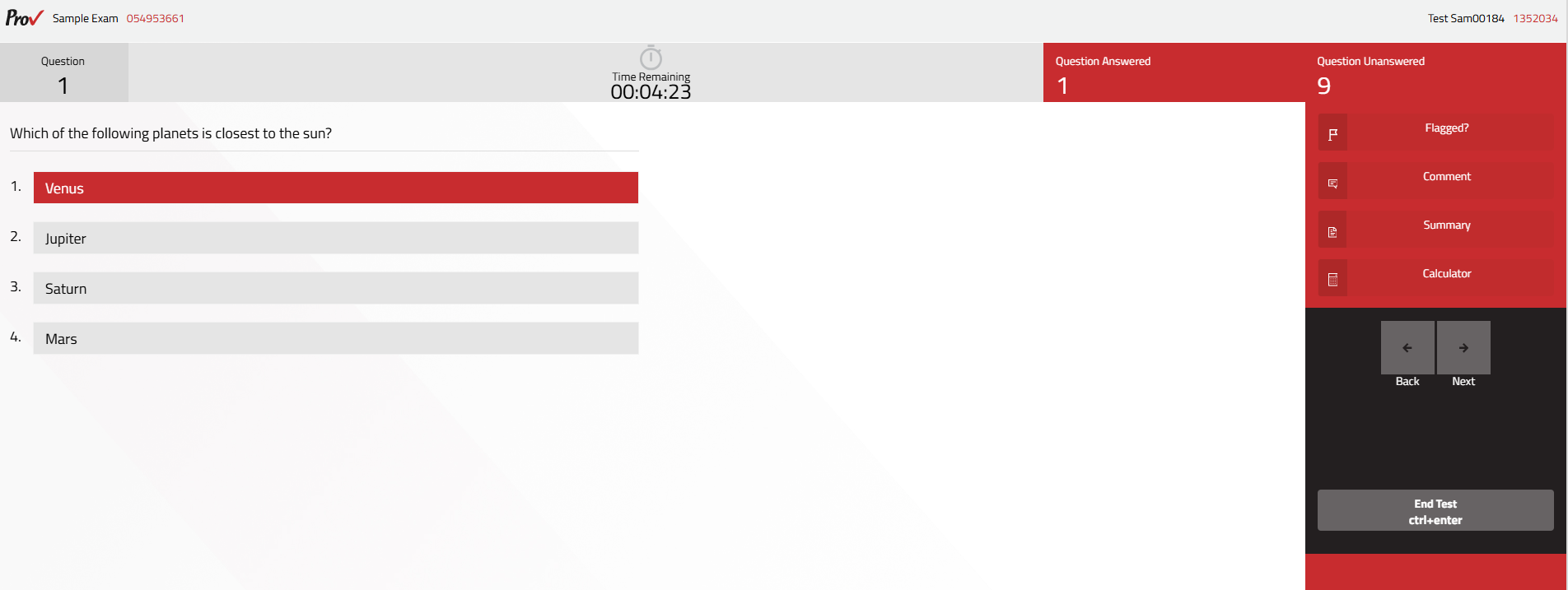
Answers are automatically saved as you select them.
- Read the question and available answer choices.
- Click or tap on an answer to select your answer.
- Select Next to continue.
- Where navigation is permitted for the exam type, select Back to return to a previous question.
- You can change an existing answer and answer an unanswered question before submitting the exam.
Flagging Questions
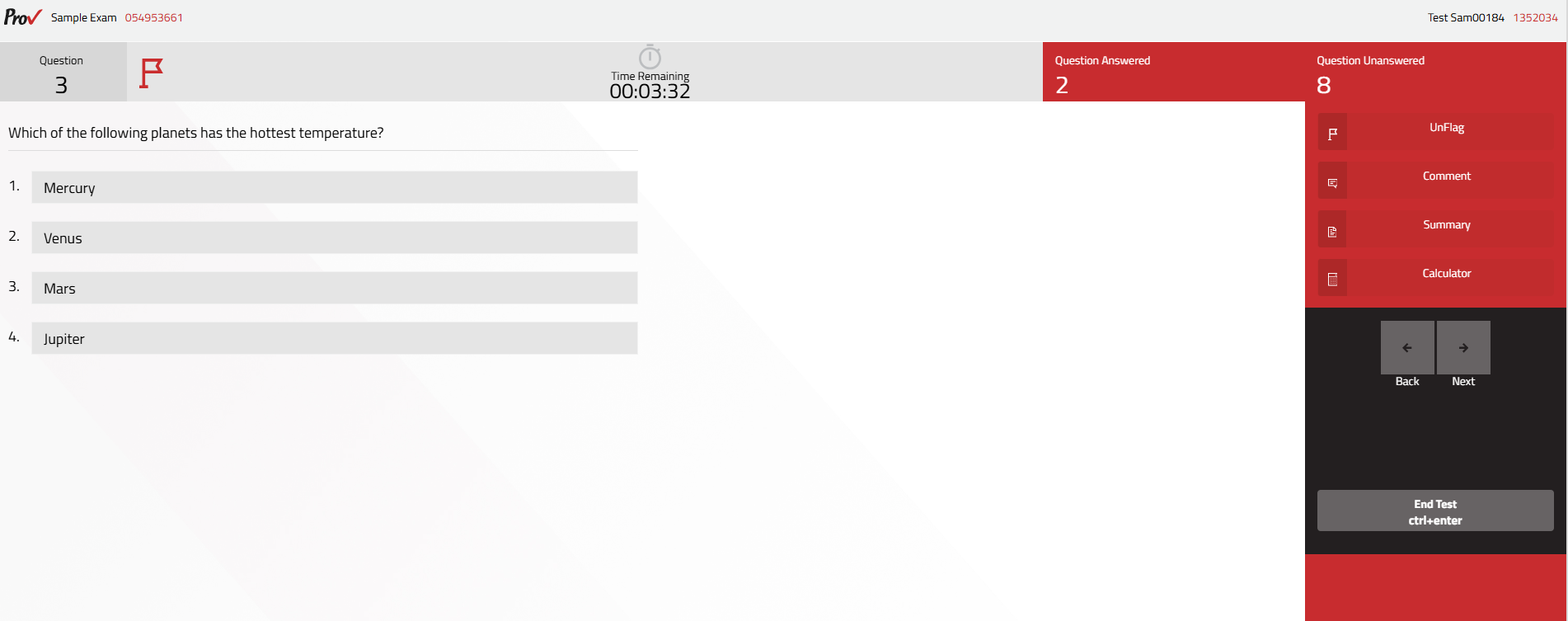
Use Flagged? to mark a question for your own review. Flagging does not affect exam submission or scoring.
- Open the question you want to revisit.
- Select “Flagged?”.
- The option changes to “UnFlag”, indicating that the question is flagged.
- Select “UnFlag” later if you no longer want the question marked.
Adding Comments
Use Comment to report an issue with a question. Comments are available for reviewer use.
- Select Comment.
- Select the comment type from the dropdown list.
- Enter your comments in the provided comment field.
- Select Save Comment.
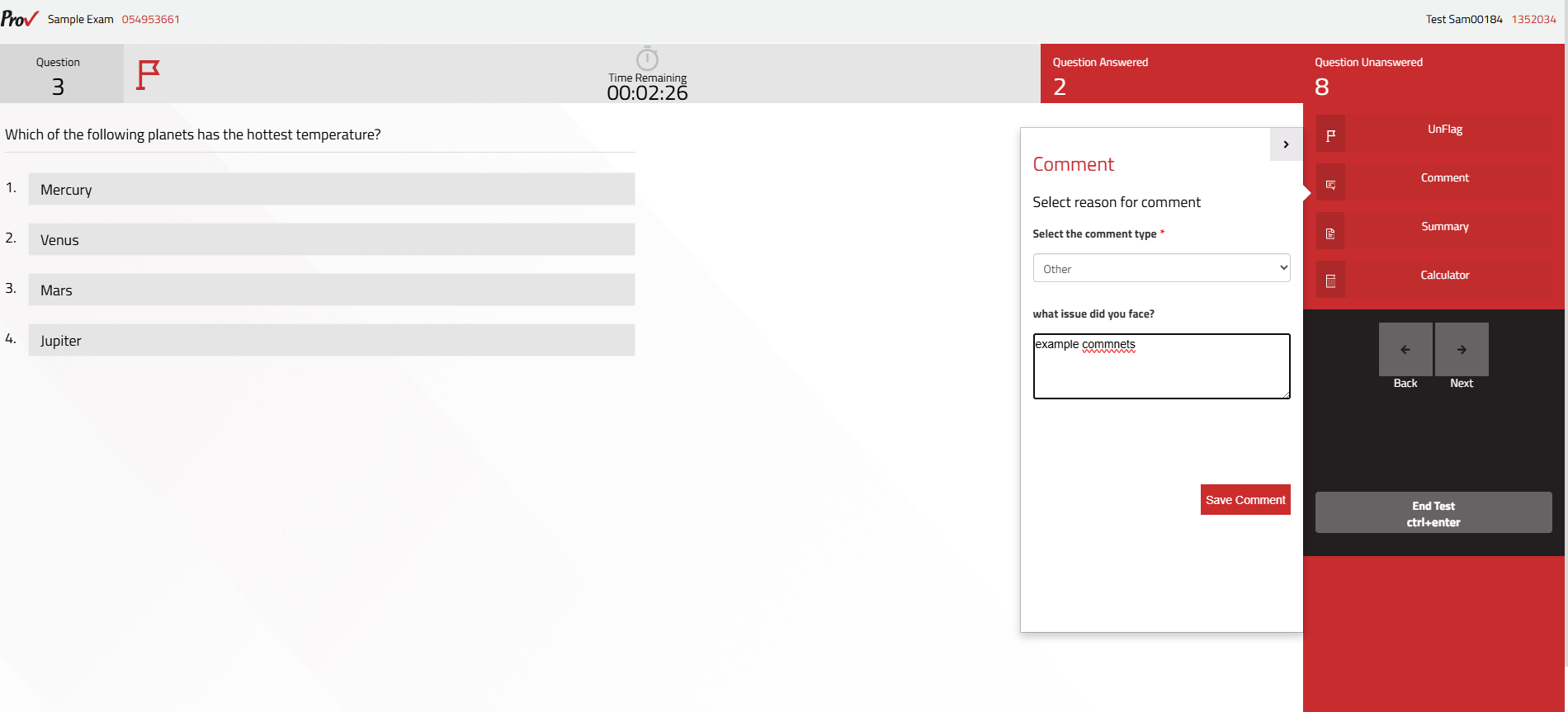
Note: Comment types shown include issues such as more than one correct answer, no correct answer, misleading question, insufficient information, and Other.
Question Summary
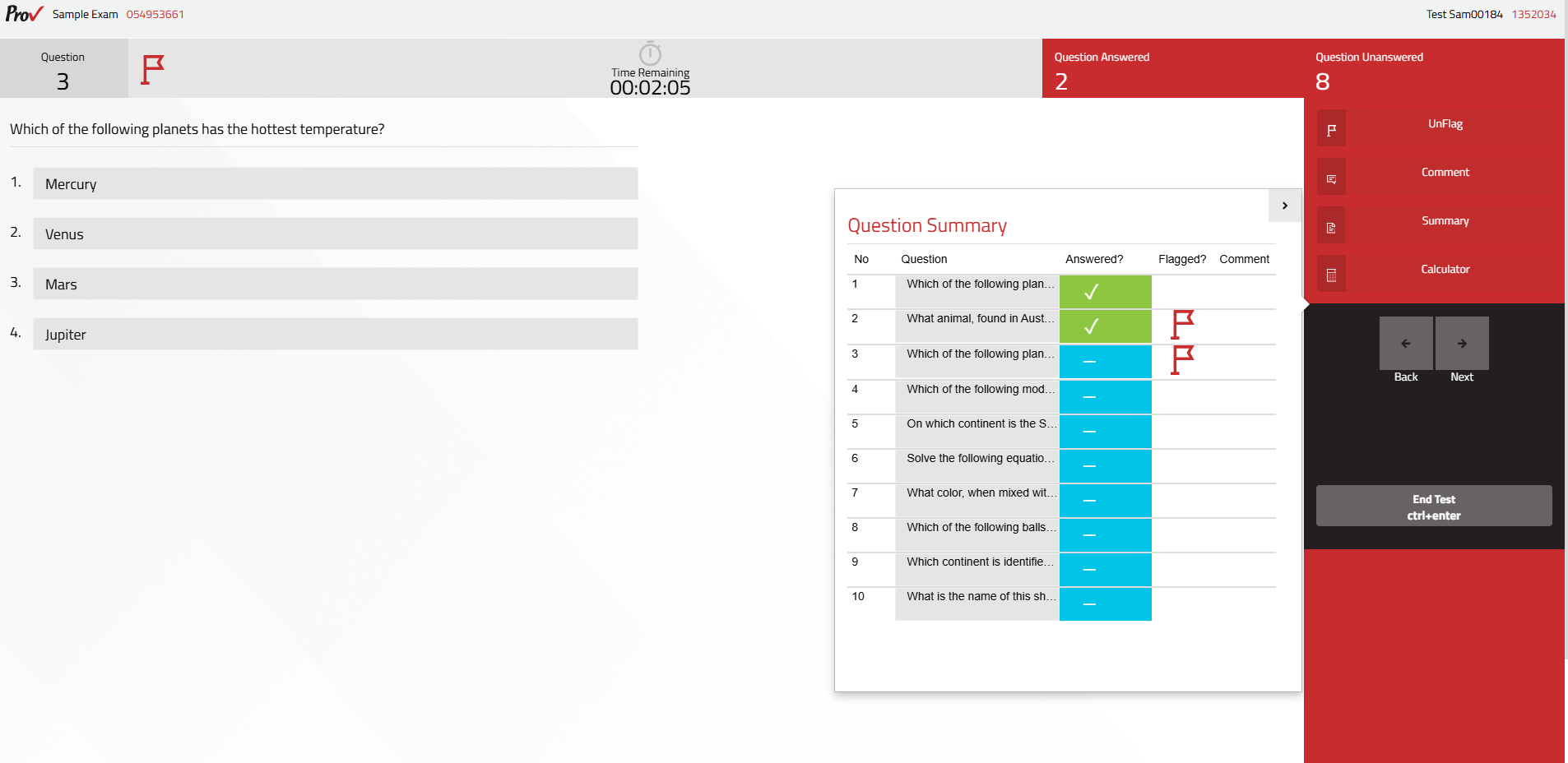
Question Summary provides an overview of the number of questions answered, unanswered, and flagged by you in the exam and helps you identify questions that may need review.
- Answered questions are marked in green with a checkmark.
- By default, unanswered questions are marked in blue.
- Flagged questions are marked with a flag icon for review.
- Use the summary to navigate directly between questions.
Calculator
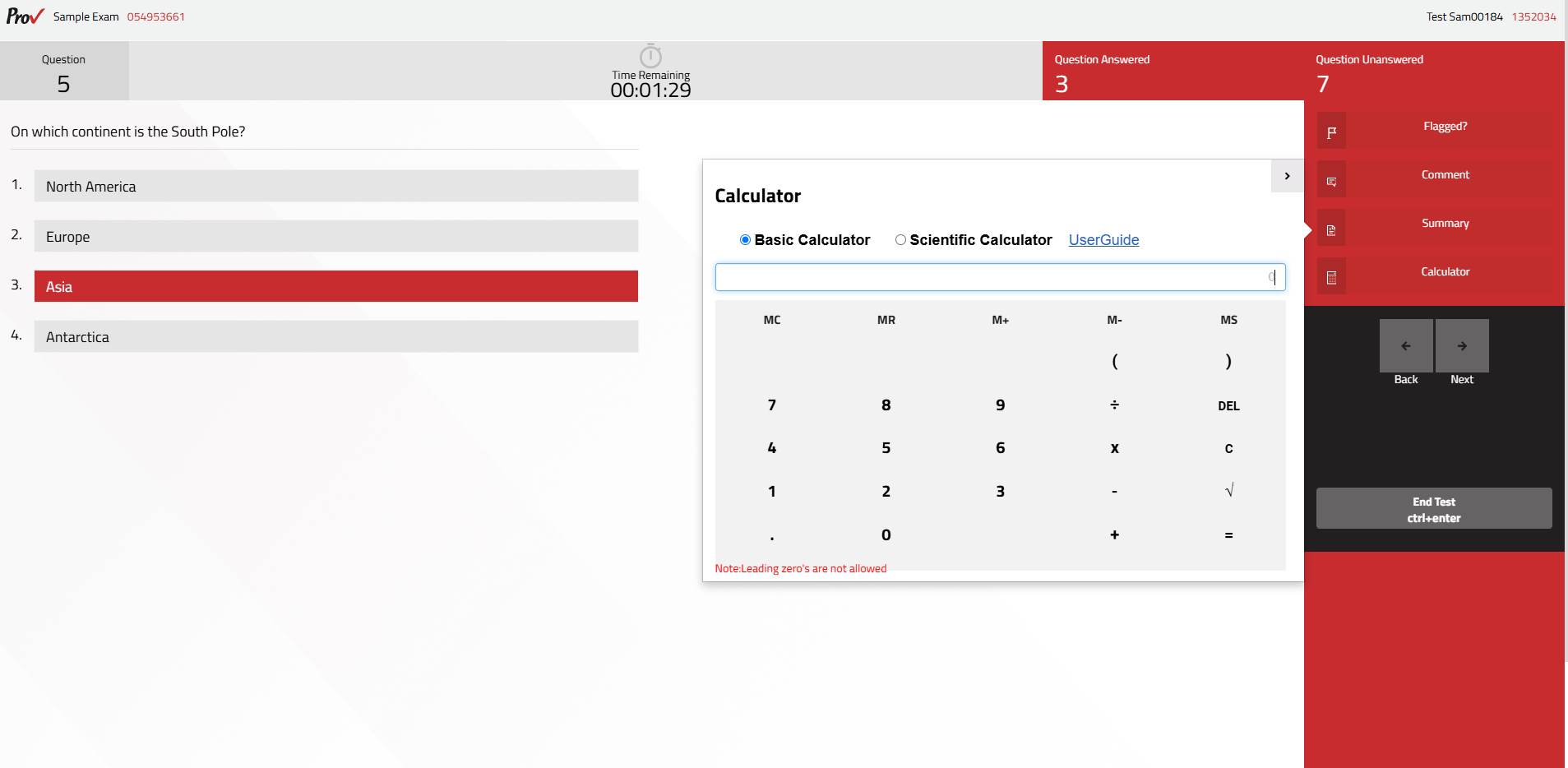
The Calculator option opens the on-screen calculator when it is available for the exam.
- The representative interface includes Basic Calculator and Scientific Calculator options. Calculator availability may vary by exam.
Ending the Test
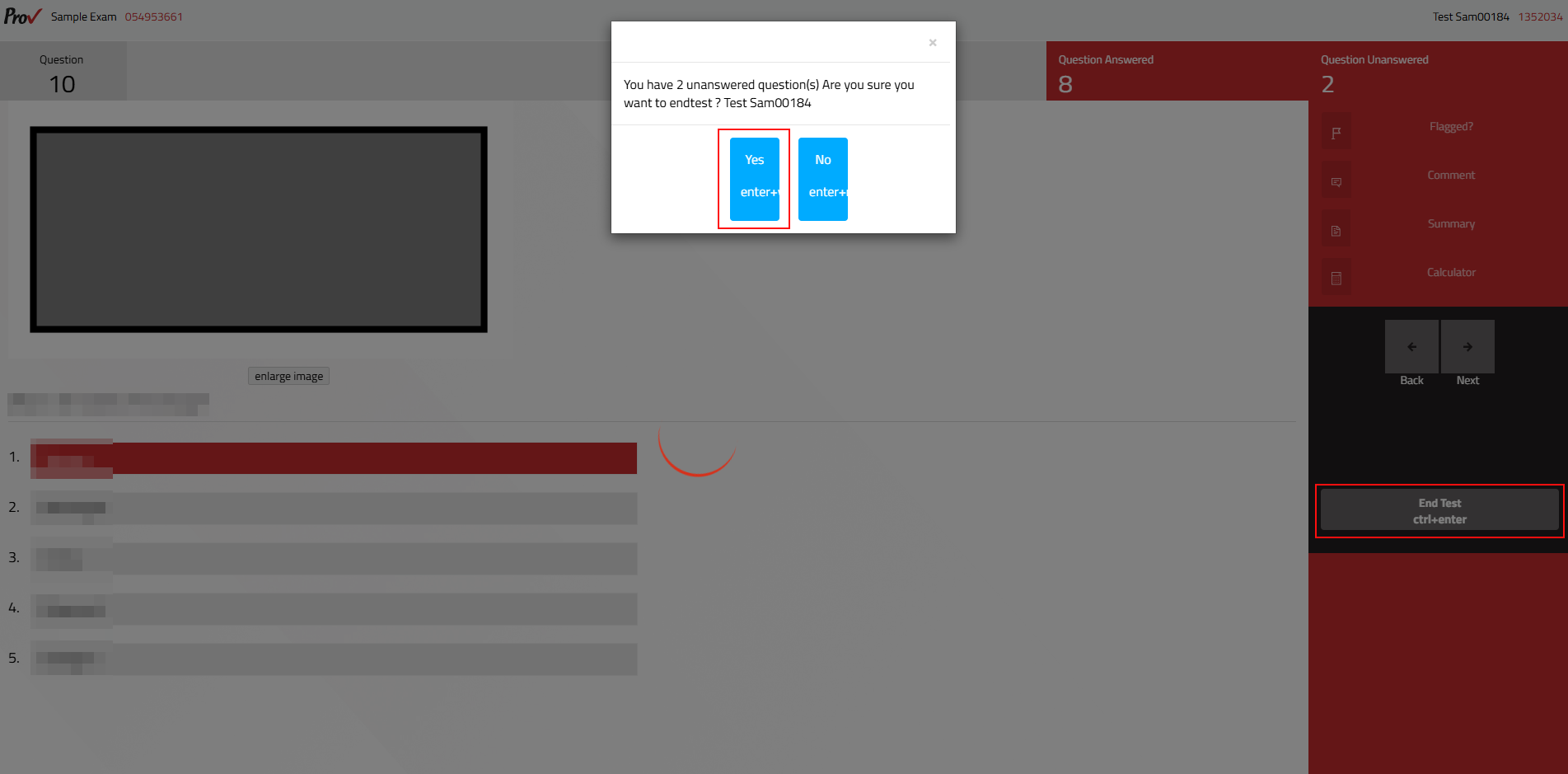
- Select End Test in the right-side panel when you are ready to submit the exam.
- A pop-up will appear with a confirmation message and the number of unanswered questions.
- Select Yes to confirm and submit the exam.
- Select No to return to the exam.
Note:
- You can also do the End Test using the Ctrl + Enter keyboard shortcut.
- When exam time expires, the exam is submitted automatically based on the candidate's current progress.
- Questions answered before the timer expires are included in the submission.
- Questions that remain unanswered at the time of expiration remain unanswered.